

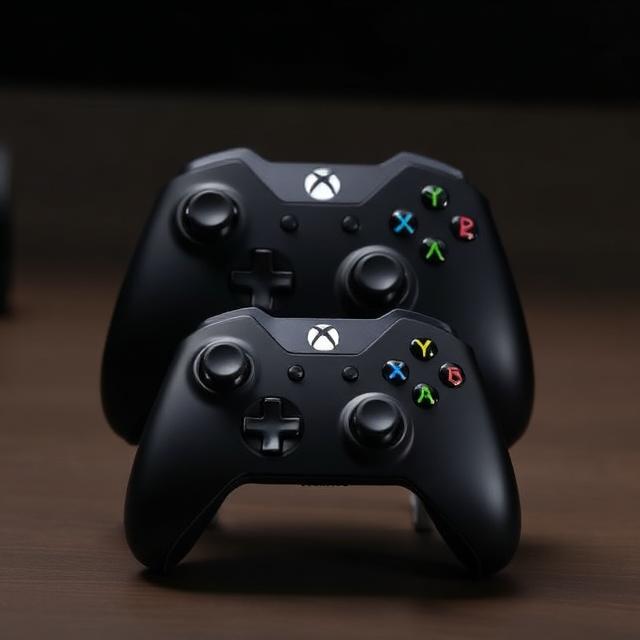
Many PC games offer a more immersive and comfortable experience when played with a controller instead of a traditional keyboard and mouse. The Xbox controller is a favorite among gamers for its ergonomic design and wide compatibility. If you’re looking to elevate your PC gaming sessions, learning how to connect an Xbox controller to PC is a great first step. This guide will walk you through every method, from a simple wired connection to a seamless wireless setup, ensuring you can jump into your games without any hassle.
We will cover the different ways to connect your controller, whether you’re using Windows 10 or the latest Windows 11. You’ll find step-by-step instructions for using a USB cable, Bluetooth, or the official Xbox Wireless Adapter. We will also explore troubleshooting common problems and answer frequently asked questions to make the process as smooth as possible.
Why Use an Xbox Controller on PC?
While a keyboard and mouse are staples for PC gaming, an Xbox controller offers distinct advantages that can significantly enhance your gameplay. Many players prefer a controller for its comfort and intuitive controls, especially in certain game genres.
Here are a few reasons why using an Xbox controller on your PC is a popular choice:
- Ergonomic Comfort: Xbox controllers are designed for long gaming sessions. Their shape fits naturally in your hands, reducing strain and fatigue compared to a keyboard and mouse setup.
- Improved Precision for Certain Genres: Games like racing simulators, action-adventure titles, and sports games often feel more natural with a controller. The analog sticks provide nuanced control over movement and camera angles, while pressure-sensitive triggers allow for precise acceleration and braking.
- Broad Game Compatibility: A vast library of PC games comes with built-in controller support. Platforms like Steam make it easy to configure and use your Xbox controller. In many cases, it’s a simple plug-and-play experience.
- Haptic Feedback: Modern Xbox controllers feature vibration motors that provide haptic feedback, making the gaming experience more immersive. You can feel the rumble of an engine or the impact of an explosion, drawing you deeper into the game world.
- Familiarity and Simplicity: For those who also play on an Xbox console, using the same controller on a PC provides a consistent and familiar experience. Once set up, the controller is incredibly easy to use.
Methods to Connect Xbox Controller to PC
There are three main ways to connect your Xbox controller to your Windows PC. You can use a USB cable for a straightforward wired connection, Bluetooth for wireless convenience, or an Xbox Wireless Adapter for the most stable wireless performance. Each method has its own benefits, and the best one for you depends on your controller model and personal preference.
Connecting via USB Cable
Using a USB cable is the simplest and most reliable way to connect your Xbox controller. This method is perfect if you want to know how to connect an Xbox One controller to PC wired. It eliminates any concerns about battery life or wireless interference, providing a stable, low-latency connection.
What You’ll Need:
- An Xbox controller (Xbox One, Xbox Series X|S, or Xbox Elite).
- A micro-USB cable (for most Xbox One controllers) or a USB-C cable (for Xbox Series X|S and newer Xbox One controllers).
- An available USB port on your PC.
Step-by-Step Instructions:
- Plug the Cable In: Connect the USB-A end of your cable into an open USB port on your computer.
- Connect to the Controller: Plug the other end (micro-USB or USB-C) into the port on the top of your Xbox controller.
- Wait for Installation: Your Windows PC should automatically detect the controller. You may see a notification that drivers are being installed. This process is usually quick and automatic on Windows 10 and Windows 11.
- Ready to Play: Once the Xbox button on the controller lights up and stays lit, it’s connected and ready to use. You can launch a game and start playing immediately.
This method of learning how to connect Xbox controller to PC with USB is foolproof. It also charges your controller if you’re using a rechargeable battery pack, so you can play and charge simultaneously.
Connecting via Bluetooth
For those who prefer a wireless setup, Bluetooth is a great option. This method allows you to learn how to connect an Xbox controller to PC wirelessly without needing any extra accessories, provided your controller and PC both support it.
First, Check for Bluetooth Support:
Not all Xbox controllers have Bluetooth. To check if yours does, look at the plastic around the Xbox button.
- Bluetooth Supported: The plastic surrounding the Xbox button is part of the main face of the controller.
- No Bluetooth: The plastic around the Xbox button is a separate piece, usually glossy, that is part of the top bumper section.
Original Xbox One controllers do not have Bluetooth. Most controllers released after the Xbox One S (including Xbox Series X|S controllers) do.
Step-by-Step Instructions:
- Turn On the Controller: Press and hold the Xbox button to turn your controller on.
- Enter Pairing Mode: Locate the small, circular Pair button on the top of the controller, near the USB port. Press and hold this button for about three seconds. The Xbox button will begin to flash rapidly, indicating it’s in pairing mode.
- Open Bluetooth Settings on PC:
- On Windows 10, go to Settings > Devices > Bluetooth & other devices.
- On Windows 11, go to Settings > Bluetooth & devices.
- Add a Device: Make sure Bluetooth is toggled on. Click on “Add Bluetooth or other device” (Windows 10) or “Add device” (Windows 11).
- Select Bluetooth: In the new window, choose the “Bluetooth” option.
- Find Your Controller: Your PC will start searching for available devices. Select “Xbox Wireless Controller” from the list.
- Complete Pairing: Your PC and controller will connect. The Xbox button will stop flashing and remain solid. You have now successfully learned how to connect an Xbox controller to PC without an adapter.
Connecting via Wireless Adapter
For the most reliable and high-performance wireless connection, the Xbox Wireless Adapter for Windows is the best choice. This adapter uses the same proprietary wireless protocol as the Xbox console, which means lower latency and the ability to connect up to eight controllers at once. This is the definitive guide on how to connect an Xbox controller to PC with a Wireless Adapter.
What You’ll Need:
- An Xbox Wireless Controller.
- The Xbox Wireless Adapter for Windows.
- An available USB port on your PC.
Step-by-Step Instructions:
- Plug in the Adapter: Connect the Xbox Wireless Adapter to a USB port on your computer. Windows will automatically install the necessary drivers.
- Turn On the Controller: Press the Xbox button to power on your controller.
- Press the Pairing Button on the Adapter: Press the small button on the side of the Xbox Wireless Adapter. A small light on the adapter will start to flash.
- Press the Pairing Button on the Controller: Within 20 seconds, press and hold the Pair button on your controller (the same one used for Bluetooth pairing). The Xbox button will start flashing more quickly.
- Connection Established: Once the Xbox button and the light on the adapter both turn solid, the connection is complete. Your controller is now paired and ready for gaming.
This method is ideal for gamers who want a console-like wireless experience on their PC, and it’s also how to connect an Xbox controller to PC without Bluetooth.
Troubleshooting Common Issues
Sometimes, you might run into issues when trying to connect your controller. Here are some common problems and their solutions to help you get back to gaming.
- Controller Not Connecting or Turning On:
- Solution: Check the batteries. If you’re using AA batteries, replace them with a fresh pair. If you have a rechargeable pack, make sure it’s charged by connecting the controller to your PC with a USB cable.
- Controller Not Detected by PC (USB):
- Solution: Try a different USB port on your computer. Also, test the USB cable with another device to ensure it’s not faulty. Make sure your Windows is up to date, as this can resolve driver issues.
- Bluetooth Pairing Fails:
- Solution: First, double-check that your controller model supports Bluetooth. Make sure you’re holding the Pair button long enough to enter pairing mode. Update your PC’s Bluetooth drivers through the Device Manager. Finally, move the controller closer to your PC and away from other wireless devices that could cause interference.
- Controller Disconnects Frequently (Wireless):
- Solution: For Bluetooth, this can be caused by a weak signal or interference. Try to maintain a clear line of sight between the controller and your PC. For the Wireless Adapter, ensure it’s plugged into a front USB port for a better signal. Low batteries can also cause disconnections, so replace them or recharge the controller.
- Buttons Not Responding in a Game:
- Solution: Confirm that the game you’re playing supports controller input. Some older PC games may not. For games on platforms like Steam, check the controller configuration in the game’s settings. You can also use the Xbox Accessories app (available from the Microsoft Store) to update your controller’s firmware, which can fix compatibility issues. Learning how to connect an Xbox controller to PC Steam often involves navigating Steam’s own controller settings for optimal performance.
Benefits of Using an Xbox Controller on PC
Opting for an Xbox controller on your PC setup unlocks a variety of benefits that cater to both casual and competitive gamers. The seamless integration and thoughtful design contribute to a superior gaming experience.
- Plug-and-Play Simplicity: For a wired connection, it’s as simple as plugging it in. Windows handles the rest. This ease of use makes it accessible for everyone.
- Wireless Freedom: With Bluetooth or the Wireless Adapter, you can enjoy gaming without being tethered to your desk. This creates a cleaner setup and allows you to play from a comfortable distance.
- Versatility Across Platforms: The Xbox controller isn’t just for your PC. You can easily pair it with your Xbox console, or even compatible smartphones and tablets, making it a versatile tool for all your gaming needs.
- Customization Options: Through the Xbox Accessories app on Windows, you can remap buttons, swap sticks and triggers, adjust vibration intensity, and create custom profiles for different games. This level of personalization allows you to tailor the controller to your exact playstyle.
- Native Support: Because both Xbox and Windows are Microsoft products, the controller enjoys native support across the operating system. Features like the Xbox Game Bar are easily accessible by pressing the Xbox button, letting you quickly capture screenshots, record gameplay, and manage your audio without leaving your game.
Frequently Asked Questions
- Can I connect an Xbox 360 controller to a PC?
Yes, you can. A wired Xbox 360 controller can be plugged directly into a USB port. For a wireless Xbox 360 controller, you will need a dedicated Xbox 360 Wireless Gaming Receiver for Windows, as it does not use Bluetooth. - How do I update my Xbox controller’s firmware on a PC?
You can update your controller’s firmware using the Xbox Accessories app, which is available for free from the Microsoft Store on Windows 10 and 11. Connect your controller to your PC (a USB connection is recommended for updates), open the app, and it will notify you if an update is available. - Can I use multiple Xbox controllers on one PC?
Yes. You can connect multiple controllers. If using the Xbox Wireless Adapter, you can connect up to eight controllers simultaneously. With Bluetooth, the number may be limited by your PC’s Bluetooth hardware, but you can typically connect several. You can also connect multiple controllers using different USB ports. - Does the controller’s headphone jack work when connected to a PC?
Yes, the 3.5mm headphone jack on the controller works when connected to a PC via USB or the Xbox Wireless Adapter. However, audio functionality over Bluetooth may have limitations or higher latency depending on your controller model and PC’s Bluetooth version.
5. Why is my controller vibrating constantly?
This is usually a game-specific issue or a driver bug. First, try unplugging and reconnecting the controller. If the problem persists, check the in-game settings to see if you can adjust or disable vibration. You can also disable vibration completely through the Xbox Accessories app by creating a new profile and setting the vibration sliders to zero.